Body
Your unofficial transcript will list all classes completed at Wichita State University and transfer coursework no matter how long ago they were taken. Owing the university will no longer restrict a student from accessing their unofficial transcript, nor stop them from obtaining an official copy of the transcript.
To view your unofficial transcript, follow these steps:
- Log into your myWSU portal
- Click on the myClasses tab
(Image of myClasses button)

- Go to the Academic Profile box
- Click on Transcript
(Image of Academic Profile location of Transcript option)
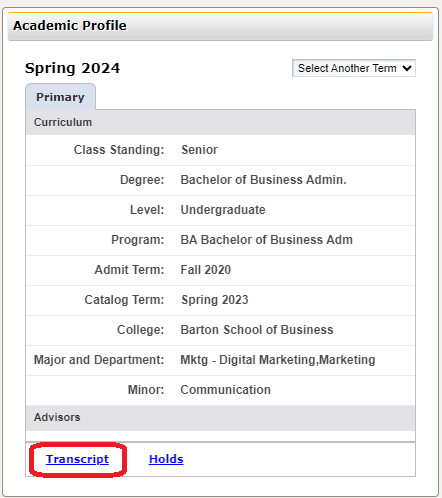
- Once you click on the Transcript link, this page will appear.
Note: In most cases, you can leave the transcript level and type on the default settings.
(Image of Academic Transcript Options)
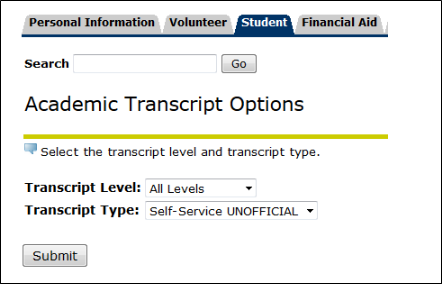
- Click the Submit button
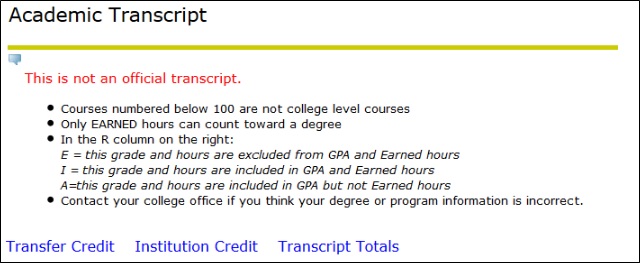
You should now be viewing your unofficial transcript. You should see something similar to this screen followed by your Student Information, Curriculum Information, Transfer Credit Accepted by Institution (if applicable), Institution Credit, and Transcript Totals which includes your GPA information.
(Image of Academic Transcript)
If you need an official transcript, please visit www.wichita.edu/transcripts.
Hold Preventing Unofficial Transcript View
Owing the university will no longer restrict a student from accessing their unofficial transcript, nor stop them from obtaining an official copy of the transcript. You may still able to view your degree audit including courses you have taken and are current enrolled in through your myWSU portal. Instructions to view your degree audit are available here.
------------------------------------------------------------------------------------------------------------------------------------------------
How to Print Your transcript:
Students who wish to print a copy of their transcript can follow the instructions below based on their device.
Printing on Windows:
1. Right-click anywhere on the transcript page
2. Select Print.
3. In the Destination field, choose your desired printer
4. Click Print.
Printing on Mac:
1. Click on the option bar in the top left of your screen
2. Select File
3. Select Print and set the Destination to your desired printer.
To Save Your Transcript as a PDF:
Windows:
Right click somewhere on the page and select Save as PDF. Click Save and navigate to desired location.
Mac:
Click on the option bar in the top left of your screen and select File then Export as PDF. Set the Destination to desired file location.