How To Get To ScholarshipUniverse:
- wichita.edu/scholarshipuniverse
How to Set Up Your Account and Logging In:
- Newly admitted and continuing WSU students are eligible to apply for scholarships through ScholarshipUniverse. Students must be admitted to WSU and have an active myWSU account to be able to log into the system and submit applications.
- Login: Use your myWSU ID and password to log into ScholarshipUniverse. If this is your first time logging in, review the privacy policy and update your contact details in the platform. If you are having trouble setting up your account, please reach out to the HelpDesk (978-4357) for IT assistance.

Start Answering Questions:
- Click on the "Questions" icon on the menu to answer questions about yourself. These profile-based questions help the system know what scholarship opportunities you may be eligible to apply for.
- If you are new to the system, you may be prompted to add profile information when you visit the "Questions" section.
- Fill out introductory information and choose to "Skip" or "Continue" to answer available questions.
- You may choose not to answer individual questions by selecting "N/A."
- IMPORTANT: Some questions may have pre-populated answers for you. Any pre-populated answers are directly linked to university records and cannot be edited within the ScholarshipUniverse system. If you click the pencil icon on a desktop or the edit button on a mobile device for any pre-populated answers, you will be presented with a blank page.
- If you are returning to the system, you can update your existing answers or add new information as long as they are not answers that come directly from your WSU student record.
- Click the “Answer More Questions” tile and answer any presented questions to the best of your ability.
- You may use the SKIP button and come back to the questions at a later time.
- You may edit any of your answers by choosing the pencil icon on a desktop or selecting the "Edit" button on mobile devices.
- After each question, the “Matches” and “Opportunity” boxes in the top right corner will be updated with the new scholarship opportunities you’ve been matched with based on the answers you have provided. At any time, you can view your matched scholarships by clicking on the “Matches” box.

View Your Matches:
- Use the Scholarships tab on the left side of the screen to view your matched scholarships.
- The Scholarships section has several tabs to review:
- Matches - List of scholarships where you met all matching requirements.
- Pinned - List of scholarships you pinned to your account using the button on an individual scholarship listing.
- Partial Matches - List of scholarships where you met at least one, but not all, matching requirements.
- Application Submitted - List of internal scholarship applications you have submitted.
- Awarded - List of internal scholarships you have been awarded.
- Non-Matches - List of scholarships where you did not meeting the matching requirements.
- Not Interested - List of scholarships you marked that you were not interested in by selecting the NO symbol on an individual scholarship.

Apply for Scholarships
- Here are few tips we have about applying for scholarships.
- Essays & Activities Charts: Some applications require essays and/or activities charts. You can upload these documents as PDFs (if needed) in ScholarshipUniverse and attach them to specific scholarship applications.
- Deadlines: Wichita State Scholarships within ScholarshipUniverse have various deadlines. Complete your applications before their respective deadlines for consideration. We recommend that you take note of individual scholarship deadlines that you have been matched to via your ScholarshipUniverse dashboard.
- Competition-based scholarships for incoming students (such as the Distinguished Scholarship Invitational) have a November 1st deadline.
- Most scholarships for current students have deadlines on or after March 1st, but specific deadlines may vary.
- Submitting Your Application: Once you submit your application, you can go back in and make edits as long as the application cycle is still open. (If the application cycle has closed, no edits can be made.)
- Before submitting, be sure to review that you answered all questions correctly and thoroughly and check for misspelled words, proper grammar, and complete sentences.
- If a student has already submitted their scholarship application but is later matched with an additional scholarship before the application cycle closes, they may select “Apply” again. ScholarshipUniverse will direct the student back to their original application so they can complete and submit an updated version.
For a video on ScholarshipUniverse visit this link here: https://youtu.be/TW6BrhlER-c?si=r6BFUF2ttFePTNhS
I've received a scholarship, what are my next steps?
If you were awarded a scholarship through ScholarshipUniverse. Below are expectations of scholarship awardees.
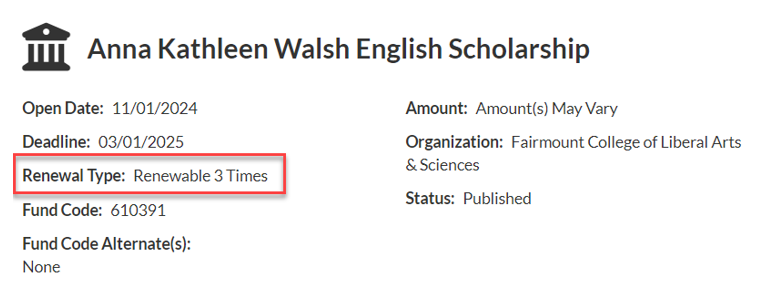
- Is it renewable?
- Renewability is unique to each scholarship. This information is contained in your Award Notification email and easily accessible within ScholarshipUniverse. Log into your account to see the details of each offered scholarship.
- EXAMPLE:
- How do I thank the donor?
- The WSU Foundation will email students who have a living donor or donor contact for your scholarship in the fall or as awarded for scholarships offered later in the cycle. To directly contact the WSU Foundation regarding donor relation questions, email them at shockerconnect@wichita.edu.
- How do I contact my college scholarship coordinator?
- Do I need to accept the scholarship?
- Most institutional scholarships, outside of recruitment funds such as Merit, should be automatically accepted for you. You can confirm the status of your scholarship by accessing your Financial Aid Dashboard in your myWSU portal.